Lead Capture Guide

As a sponsor or exhibitor, your contract may include Lead Capture. If so, you will receive an email from no-reply@m.crowdcomms.com inviting you to download the Lead Capture app from the App Store or Google Play. Once installed, tap 'Start tracking' in the email to launch the app on your device, or scan the QR code in the email to log in on another device.

If you have not received an email but were expecting to, please see your Event Director onsite at the Sales Lounge.
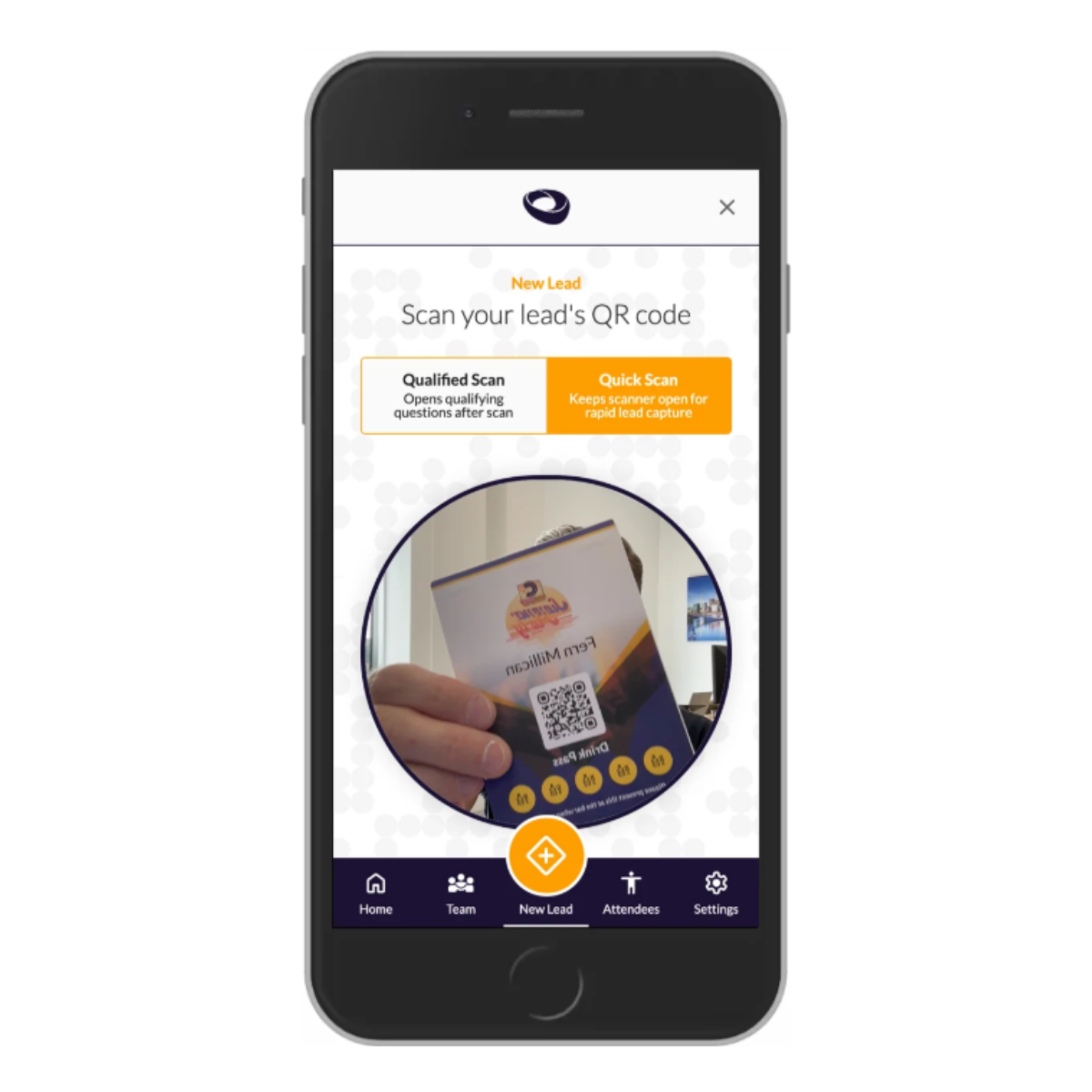
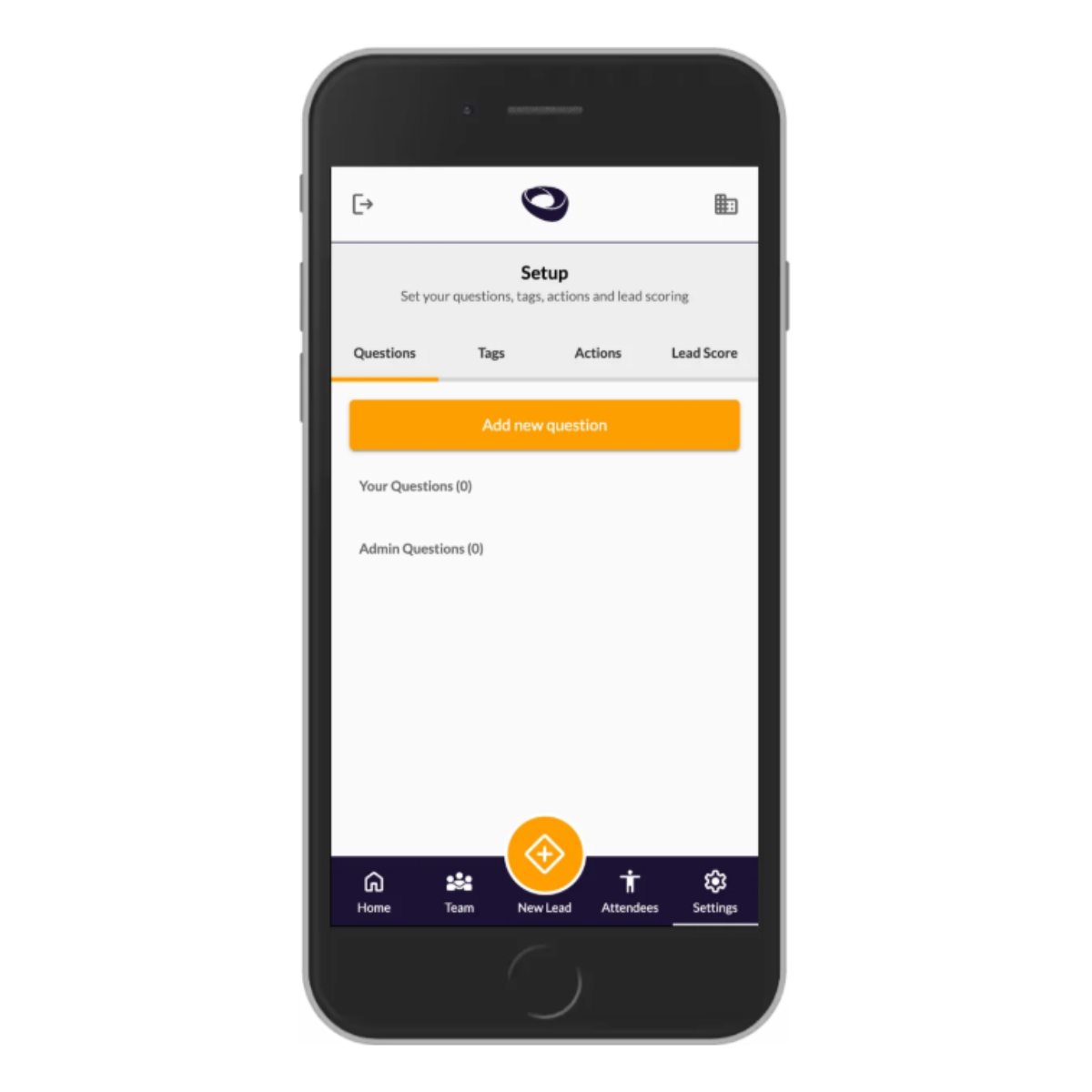
Step 1: Access the app

Open your email invite and tap the 'Start tracking' button, or download the app directly from the App Store or Google Play, to launch the app on your device.

You'll land on the main interface, which includes the Home screen, Team page, Attendees list, Settings page, and a central scan button for capturing leads.

phone 1

Step 2: Set up your questions, tags, actions and scoring

Before the event, go to Settings from the bottom navigation bar and select the Questions tab to add the key pre‑qualifying questions you want to ask during lead capture (for example, interest area, budget, or preferred follow‑up). These help you capture richer, more useful information on each lead.

While you're in Settings, you can also set up:

  • Tags — classify leads (e.g. "Customer", "Prospect", or seniority level)
  • Actions — define follow‑up actions (e.g. "Book a call", "Send a quote")
  • Scoring — choose how you'll score leads: Temperature (cold/warm/hot), Numerical (1–10), or Percentage (0–100)

Phone 2


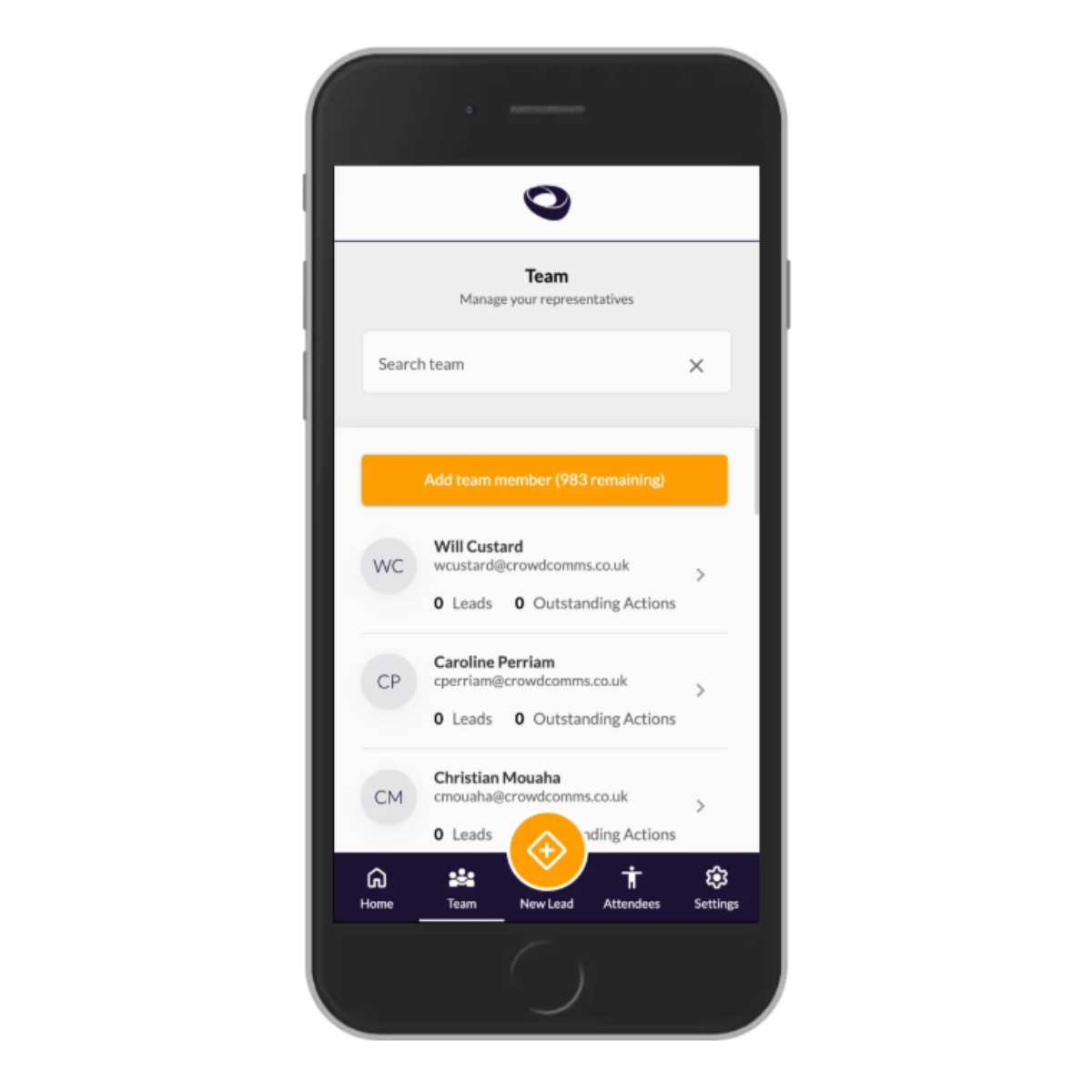
Step 3: Manage your team

Open the Team tab from the bottom navigation bar. The primary company representative can add new users and assign permissions:

  • Admin users can see all of your company's scans and leads and can export data.
  • Standard users can only see and manage their own scans.

Phone 3

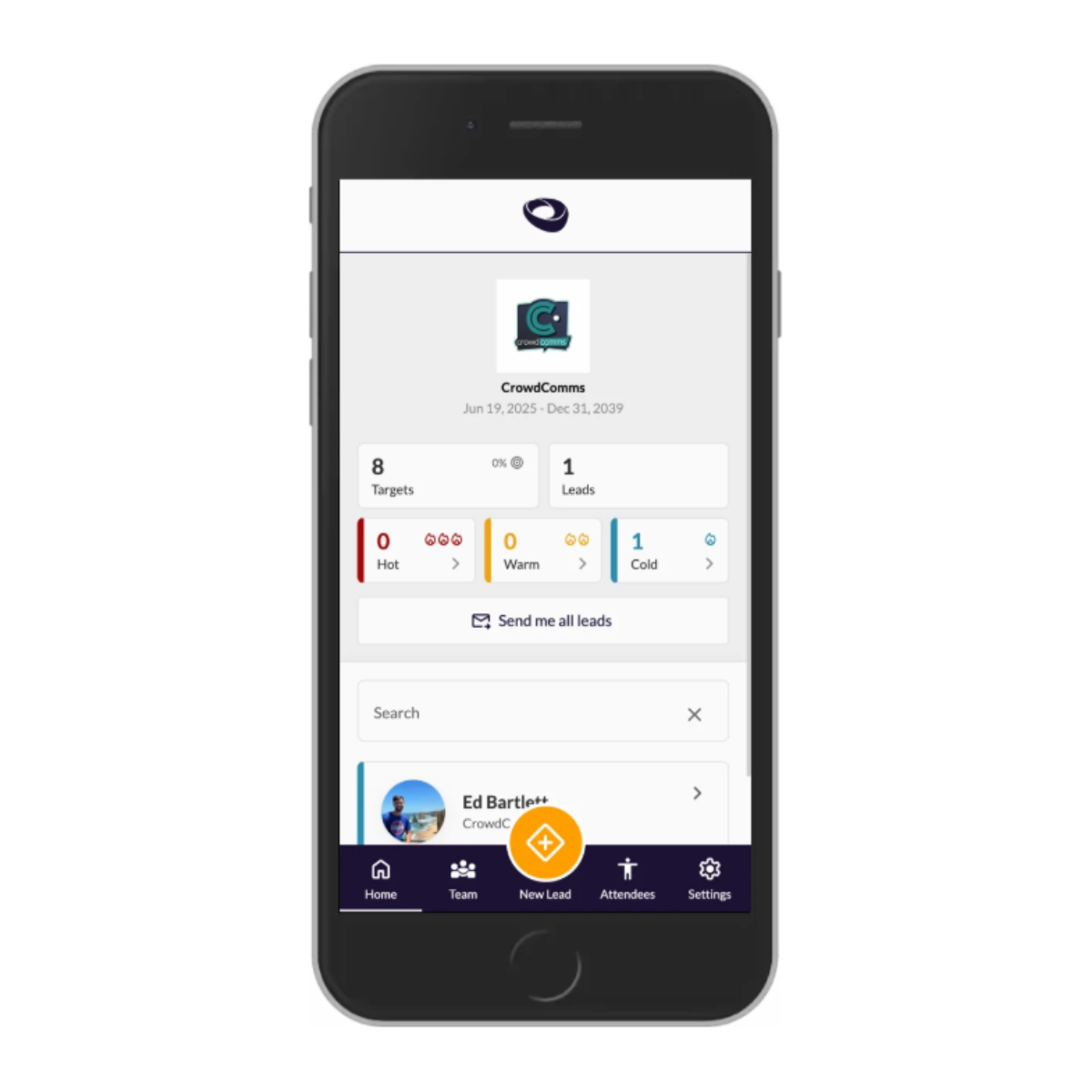
Step 4: Monitor lead capture and enrich lead records

On the Home page, review overall performance. You'll see:

  • Total number of target attendees
  • Number of leads scanned
  • A breakdown of your leads by score (e.g. warm, hot, cold), based on your chosen scoring method

Phone 5

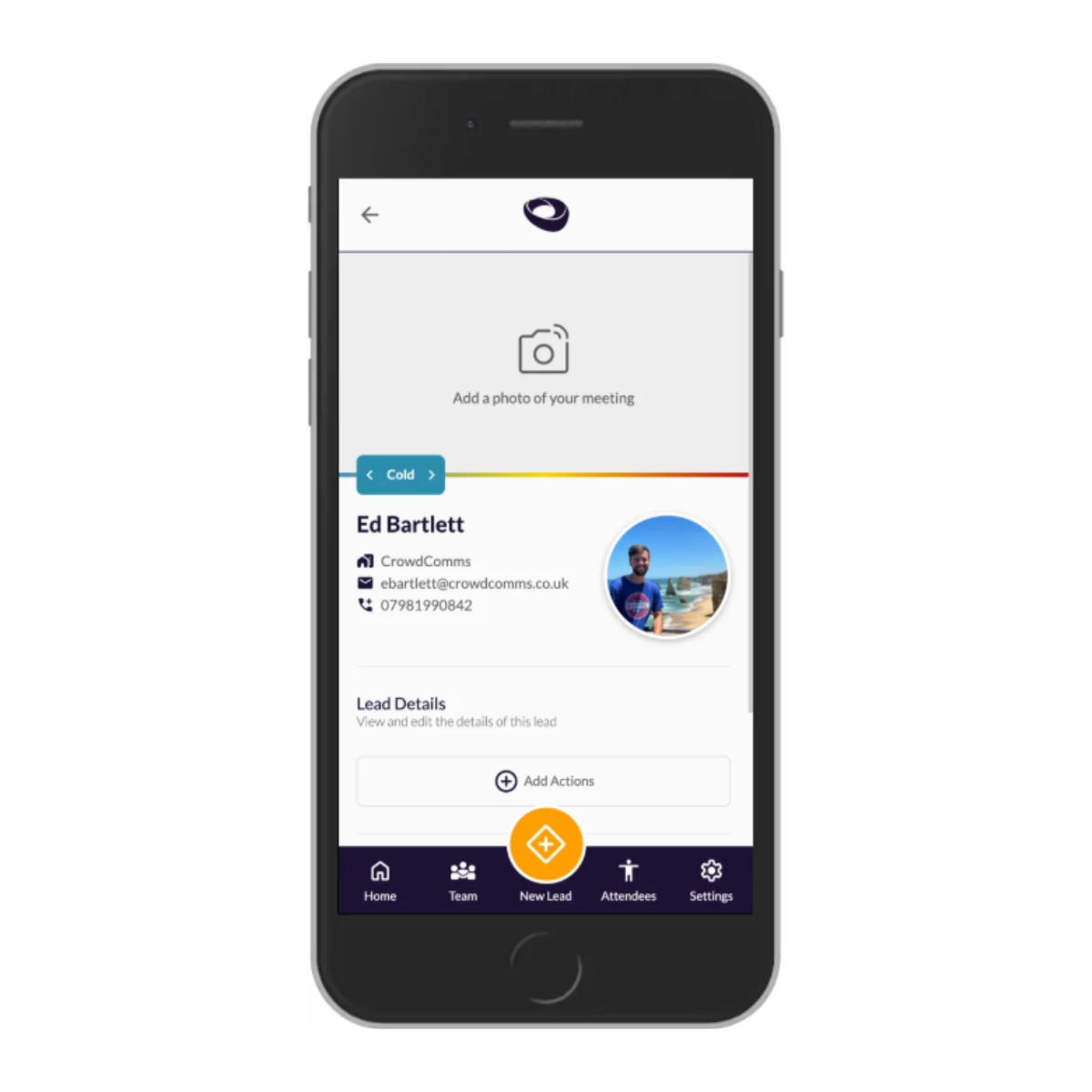
Tap a specific lead to open their detailed record. From here, you can:

  • Add or update follow‑up actions
  • Record answers to your pre‑qualifying questions
  • Apply tags
  • Set or adjust the lead score

Use these fields to ensure each lead contains all the information needed for effective follow‑up.

 Phone 5

If you have any questions

If you have any questions about how to use the app, please visit the Registration Desk onsite and speak to the representative from CrowdComms.